Software Requirements and Installation
This section describes the software dependencies required to install and run NetSim Cyber. These dependencies are required for launching the NetSim Cyber application, running protocol simulators, executing Python-based payload modifiers, and supporting real-time packet interception and attack emulation.
Before using NetSim Cyber, ensure that the required runtime components, Python packages, workspace folders, and administrator permissions are correctly configured. Incorrect dependency versions or missing permissions may prevent the application, protocol simulators, or Threat Agent from working correctly.
NetSim Cyber requires the following software components:
NetSim Cyber application
Python runtime
Required Python modules
.NET runtime
Administrator privileges
NetSim Cyber workspace and PythonUserCode folder
Protocol-specific simulator dependencies, if applicable
| Requirement | Purpose | Required For |
|---|---|---|
| NetSim Cyber | Main application for scenario creation, simulation, and attack emulation | All users |
| Python Runtime | Executes Python-based payload modifiers and simulator utilities | Payload modification, custom attacks, simulator tools |
| Python Modules | Supports GUI tools, plotting, and simulator interfaces | PMU/PDC UI, Modbus GUI, custom tools |
| .NET Runtime | Supports NetSim Cyber application components | NetSim Cyber GUI and core services |
| Administrator Privileges | Allows packet capture, routing changes, and traffic injection | Real-time traffic handling and attack emulation |
| Workspace Folder | Stores scenario files and user scripts | Project-specific simulation and attack logic |
| PythonUserCode Folder | Stores Layer 3, Layer 4, and Layer 5 packet modification scripts | Custom and protocol-aware attacks |
Software requirement summary
Dependency Summary
NetSim Cyber depends on specific runtime components and supporting libraries. These dependencies must be installed before running protocol-based experiments.
The exact version requirements may vary depending on the NetSim Cyber release. Users should always follow the dependency versions provided with the installed NetSim Cyber version.
| Dependency | Required Version | Installation Scope | Used By | Symptom if Missing or Incorrect |
|---|---|---|---|---|
| Python Runtime | Python 3.14.x, 64-bit | Install for all users | Python plugin bridge, payload modifiers, simulator utilities | Failed to load UserCodePyPlugin.dll |
| PySide6 | Latest compatible version | System-wide Python installation | PMU/PDC UI and custom simulator GUIs | GUI fails to launch, ImportError |
| pyqtgraph | Latest compatible version | System-wide Python installation | Plotting and simulator visualization tools | Graphs not rendered, ImportError |
| .NET Runtime | Version required by NetSim Cyber installer | System-wide | NetSim Cyber application | Application fails to start |
| Administrator Privileges | Windows administrator access | Run-time permission | Packet capture, route updates, traffic injection | Traffic not intercepted or route changes fail |
NetSim Cyber dependency summary
Important: The Python runtime version must match the version expected by NetSim Cyber. Installing a different Python version, or installing Python only for the current user, may prevent the Python plugin bridge from loading correctly.
Python Runtime
NetSim Cyber uses Python for payload modification, custom attack scripts, protocol simulator utilities, and selected user-interface components. The Python runtime must be installed correctly before using these features.
Required Python Version
NetSim Cyber requires the Python version specified for the installed release. For NetSim Cyber v15.1, the required version is:
Python 3.14.x, 64-bit
The Python version must match the version used to build the NetSim Cyber Python plugin bridge. If the installed Python version does not match the expected version, NetSim Cyber may fail to load the Python plugin.
Typical error: Failed to load UserCodePyPlugin.dll
Installation Scope
Python must be installed using the Install for all users option.
This is important because some NetSim Cyber components may run under system-level processes or require access outside the current user profile. A current-user-only Python installation may not be visible to those components.
Mandatory installation path: C:/Program Files/Python314/
Avoid installing on local user: C:/Users/<UserName>/AppData/Local/Programs/Python/
Fresh Python Installation
Use the following procedure to install Python for NetSim Cyber.
Download the required 64-bit Python installer.
Run the installer as Administrator.
On the first installer screen, enable:
Install launcher for all users
Add Python to PATH
Select Customize installation.
Continue through the optional features screen.
On the advanced options screen, enable:
Install for all users
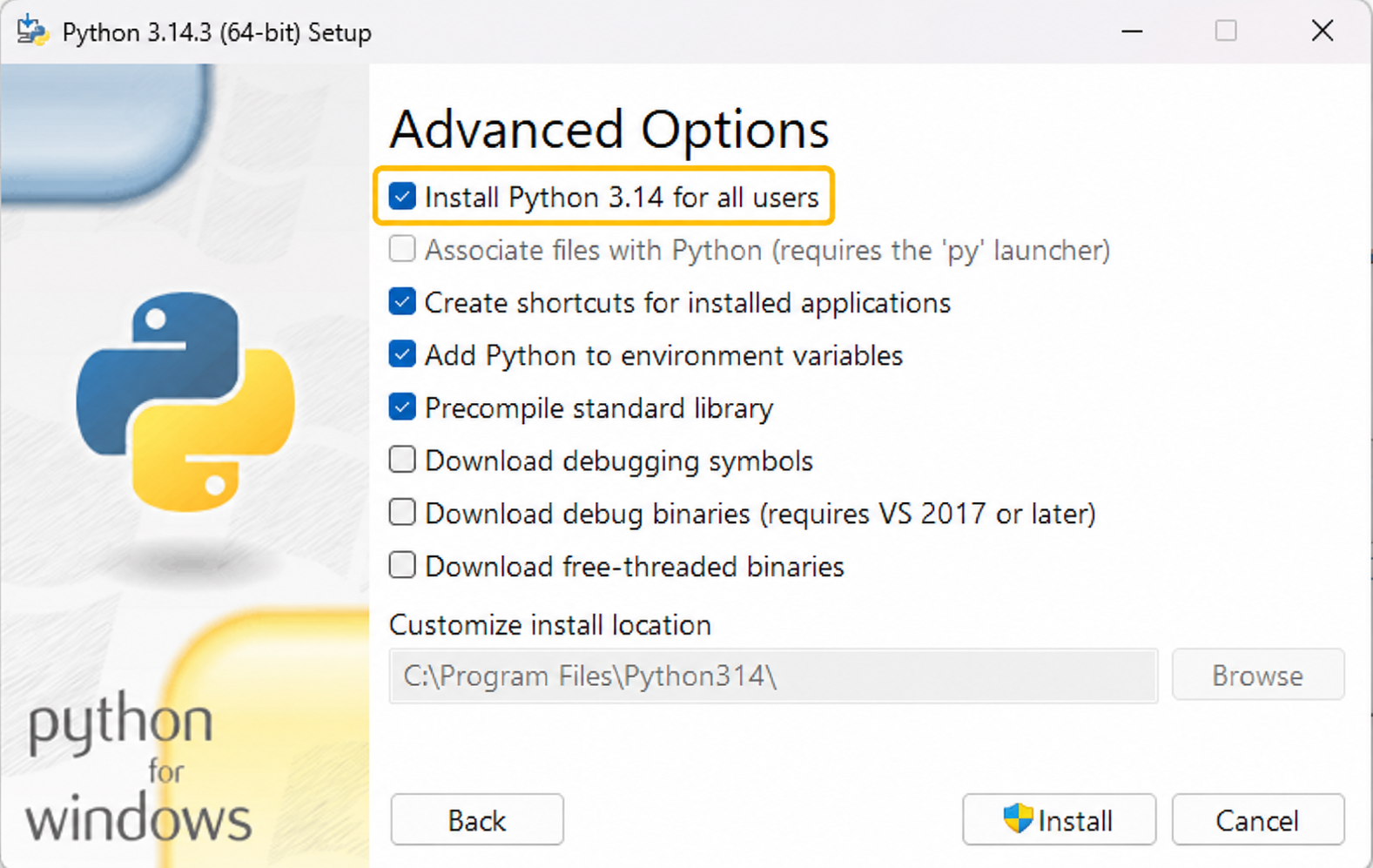
Python Installer: Choose Install Python 3.14 for all users
Confirm that the installation path is: C:/Program Files/Python314/
Complete the installation.
Open Command Prompt as Administrator.
Run:
python –version
Expected output: Python 3.14.x
Existing Python Installation
If Python is already installed on the system, check whether it matches the version required by NetSim Cyber.
Open Command Prompt as Administrator and run: python --version
Then run: where python
The output should point to the system-wide Python installation: C:/Program Files/Python314/python.exe
If the output points to a user profile path or a different Python version, install the required Python version system-wide.
Multiple Python Versions
Some systems may already contain multiple Python installations, such as Python installed by Anaconda, Visual Studio, or another software package. In such cases, ensure that the system PATH resolves to the Python version required by NetSim Cyber.
To check this, run: where python
The first path in the list should correspond to the required Python installation.
Note: If multiple Python versions are installed, NetSim Cyber may load the wrong version if the system PATH is not configured correctly. Ensure that the required Python version appears first in the system PATH.
Python Modules
After installing the required Python runtime, install the Python modules used by NetSim Cyber simulator tools and user interfaces.
Open Command Prompt as Administrator before running the installation commands. This ensures that the packages are installed into the system-wide Python environment.
Installing PySide6
The PySide6 package is required by selected NetSim Cyber simulator GUIs, such as PMU/PDC user interfaces and custom simulator windows.
Install command: pip install PySide6
Verification command: pip show PySide6
Error if missing: ImportError: No module named PySide6
Possible effect:
PMU simulator UI may not open.
PDC simulator UI may not open.
Custom simulator GUI may fail to launch.
Installing pyqtgraph
The pyqtgraph package is required for graphing, plotting, and visual display of simulator outputs.
Install command: pip install pyqtgraph
Verification command: pip show pyqtgraph
Error if missing: ImportError: No module named pyqtgraph
Possible effect:
Graphs may not render.
Simulator measurement plots may not open.
Modbus or other protocol visualization tools may fail.
Installing Modules Using the Correct Python
If multiple Python versions are installed, use the full Python path to ensure packages are installed into the correct environment.
Example:
"C:/Program Files/Python314/python.exe" -m pip install PySide6
"C:/Program Files/Python314/python.exe" -m pip install pyqtgraph
| Python Module | Used By | Install Command | Verification Command |
|---|---|---|---|
| PySide6 | PMU/PDC UI, custom simulator GUI | pip install PySide6 | pip show PySide6 |
| pyqtgraph | Plotting and visualization tools | pip install pyqtgraph | pip show pyqtgraph |
Python module requirements
.NET Runtime
NetSim Cyber requires the .NET Runtime version specified for the installed release. The .NET Runtime supports application-level components used by the NetSim Cyber GUI and core services.
For NetSim Cyber v15.1, use the .NET Runtime version provided or required by the NetSim Cyber installer.
In most installations, this dependency is handled automatically by the NetSim Cyber installer. Users normally do not need to install .NET separately unless the application fails to start or the installer specifically requests it.
Verifying .NET Runtime Installation
Open Command Prompt and run: dotnet --list-runtimes
The installed .NET runtime versions will be displayed.
If the required runtime is missing, install the required version and restart the system before launching NetSim Cyber again.
Symptoms of Missing .NET Runtime
If the required .NET Runtime is missing or corrupted, the following symptoms may occur:
NetSim Cyber application does not start.
Application window closes immediately after launch.
Windows displays a missing runtime message.
NetSim Cyber service or GUI components fail to initialize.
Note: The required .NET Runtime should be verified against the NetSim Cyber release notes or installer package. Do not replace it with a different runtime version unless specified by TETCOS support or the installation guide.
Administrator Privileges
NetSim Cyber must be run with administrator privileges for packet capture, route updates, traffic forwarding, and packet injection to work correctly.
Administrator access is required for operations such as:
Capturing live packets from network interfaces.
Injecting or forwarding modified packets.
Updating route tables.
Running NetSimCyberClient.exe.
Enabling or modifying network forwarding behavior.
Accessing system-wide Python and runtime components.
Opening restricted protocol ports.
Running NetSim Cyber as Administrator
To run NetSim Cyber as Administrator:
Right-click the NetSim Cyber shortcut.
Select Run as administrator.
Accept the User Account Control prompt.
Configuring NetSim Cyber to Always Run as Administrator
To avoid repeating this step every time:
Right-click the NetSim Cyber shortcut.
Select Properties.
Open the Compatibility tab.
Enable Run this program as an administrator.
Click Apply.
Click OK.
If the option should apply to all users:
Click Change settings for all users.
Enable Run this program as an administrator.
Click Apply.
Click OK.
Running NetSim Cyber Client as Administrator
NetSimCyberClient.exe should also be run as Administrator on source and destination systems when automatic route configuration is used.
To launch it:
Right-click NetSimCyberClient.exe.
Select Run as administrator.
Confirm that it connects to the NetSim Cyber system.
Important: If NetSim Cyber or NetSimCyberClient.exe is not run as Administrator, traffic may not be routed through the Threat Agent, and attacks may not be applied even if the simulation appears to run.
Verification and Troubleshooting
After installing the required software components, verify the environment before running any attack scenario.
Installation Verification Checklist
Use the following checklist before starting NetSim Cyber experiments.
| Check | Command / Action | Expected Result |
|---|---|---|
| Verify Python version | python --version | Required Python version is displayed |
| Verify Python path | where python | Path points to system-wide Python installation |
| Verify PySide6 | pip show PySide6 | Package details are displayed |
| Verify pyqtgraph | pip show pyqtgraph | Package details are displayed |
| Verify .NET Runtime | dotnet --list-runtimes | Required runtime is listed |
| Verify administrator mode | Launch NetSim Cyber as Administrator | No permission-related startup errors |
| Verify workspace creation | Open or create a workspace | Workspace folder is created successfully |
| Verify PythonUserCode folder | Check workspace contents | L3, L4, and L5 modifier folders are present |
Installation verification checklist
Workspace and PythonUserCode Folder Verification
NetSim Cyber uses a workspace folder to store scenario-specific files, topology information, and user-defined packet modification scripts. A typical workspace contains a PythonUserCode folder. This folder includes subfolders for different layers of packet modification.
| Folder | Entry-Point Function | Layer | Purpose |
|---|---|---|---|
| L3-ipv4-packet-modifier | modify_ipv4_header() | Layer 3 | Modify IPv4 header fields |
| L4-tcp-packet-modifier | modify_tcp_header() | Layer 4 | Modify TCP header fields |
| L5-payload-modifier | modify_payload() | Layer 5 | Modify application-layer payload |
PythonUserCode folder structure
The L5-payload-modifier folder contains protocol-specific and custom payload modifier files.
| File | Description |
|---|---|
| payload_modifier_modbus.pyd | Pre-built Modbus TCP attack logic |
| payload_modifier_dnp3.pyd | Pre-built DNP3 attack logic |
| payload_modifier_goose_sv.pyd | Pre-built IEC 61850 GOOSE / Sampled Values attack logic |
| payload_modifier_synchrophasor_2011.pyd | Pre-built IEEE C37.118-2011 Synchrophasor attack logic |
| payload_modifier_synchrophasor_2005.pyd | Pre-built IEEE C37.118-2005 Synchrophasor attack logic |
| payload_modifier_custom.py | Editable template for custom protocol attack logic |
Layer 5 payload modifier files
Important: The .pyd files are compiled binaries and should not be edited. To create a custom attack, edit payload_modifier_custom.py in the workspace folder.
Administrator Permission Issues
If NetSim Cyber is not run with administrator privileges, the following issues may occur:
Route table updates fail.
Traffic does not pass through NetSim Cyber.
Packets are not captured.
Packets are not injected.
NetSimCyberClient.exe does not configure routes.
The Threat Agent does not receive matching traffic.
Solution:
Close NetSim Cyber.
Relaunch NetSim Cyber as Administrator.
Relaunch NetSimCyberClient.exe as Administrator on source and destination systems.
Recheck routing and traffic flow.
Troubleshooting Summary
| Problem | Likely Cause | Recommended Action |
|---|---|---|
| Failed to load UserCodePyPlugin.dll | Wrong Python version or user-only Python installation | Install required 64-bit Python for all users |
| Simulator GUI does not open | Missing PySide6 | Run pip install PySide6 |
| Graphs do not display | Missing pyqtgraph | Run pip install pyqtgraph |
| NetSim Cyber does not start | Missing or incorrect .NET Runtime | Verify using dotnet --list-runtimes |
| Packets are not intercepted | NetSim Cyber not run as Administrator or wrong route configuration | Relaunch as Administrator and verify routes |
| Attack does not affect destination | Traffic filter mismatch or wrong protocol selected | Check source, destination, port, and attack protocol |
| Client does not connect to gateway | Firewall or discovery port blocked | Allow required ports and run client as Administrator |
| Python command opens wrong version | Multiple Python versions in PATH | Update system PATH or use full Python path |
Common installation and runtime issues
Workspace and PythonUserCode Folder
Workspace
On first launch, NetSim Cyber prompts the user to create a default Workspace. A Workspace is a folder under:
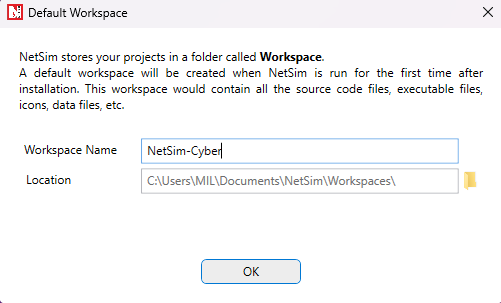
Default Workspace
It holds the network topology, simulation configuration, and the PythonUserCode scripts for that scenario. Additional workspaces can be created at any time from the Your Work tab in the NetSim Cyber interface by clicking the book icon to open the list of workspaces.
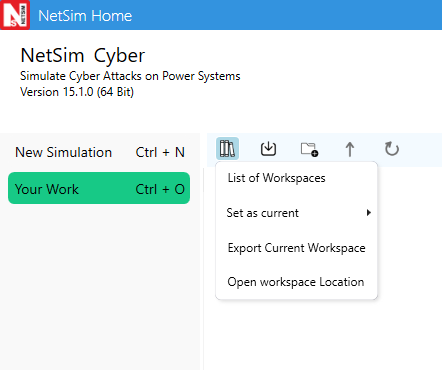
Manage Workspaces
From the list of workspaces, click the book icon with the plus (+) sign, enter a workspace name, and click Create to create a new workspace.
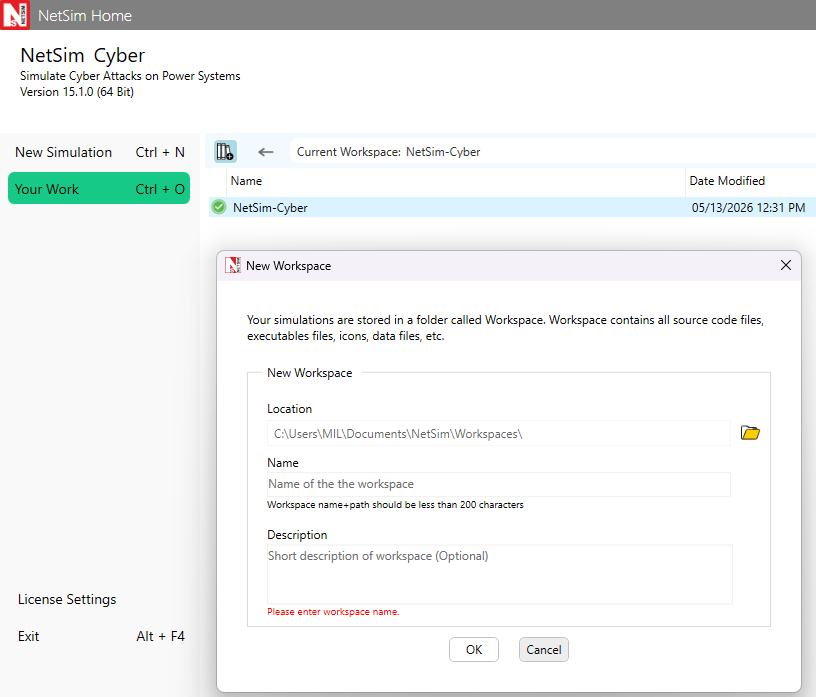
Create New Workspace
PythonUserCode Folder
Each Workspace contains a PythonUserCode folder with three sub-folders, one for each layer of the network stack where packet-level attack logic can be applied:
| Folder | Entry-point Function | Layer |
|---|---|---|
| L3-ipv4-packet-modifier/ | modify_ipv4_header() | IPv4 header fields |
| L4-tcp-packet-modifier/ | modify_tcp_header() | TCP header fields |
| L5-payload-modifier/ | modify_payload() | Application-layer payload bytes |
The scripts in these folders are copied from the NetSim Cyber installation directory when the Workspace is created, so each Workspace starts with a clean set of templates. NetSim loads the scripts from the Workspace at simulation start and calls the entry-point function once for every packet passing through the attacker node.
L5-payload-modifier in Detail
The L5-payload-modifier folder includes pre-built compiled modules for common industrial protocols and an editable template for custom protocols:
| File | Description |
|---|---|
| payload_modifier_modbus.pyd | Pre-built Modbus attack logic. |
| payload_modifier_dnp3.pyd | Pre-built DNP3 attack logic. |
| payload_modifier_goose_sv.pyd | Pre-built IEC 61850 GOOSE / Sampled Values attack logic. |
| payload_modifier_synchrophasor_2011.pyd | Pre-built IEEE C37.118-2011 Synchrophasor attack logic. |
| payload_modifier_synchrophasor_2005.pyd | Pre-built IEEE C37.118-2005 Synchrophasor attack logic. |
| payload_modifier_custom.py | Blank template for any custom protocol attack. |
Note: To write a custom attack, edit payload_modifier_custom.py inside the Workspace's PythonUserCode/L5-payload-modifier/ folder. The .pyd files are compiled binaries and should not be modified.
.NET Runtime
Required Version
NetSim Cyber v15.1 requires .NET Runtime 10.0.3.
Note: This dependency is automatically handled during NetSim installation. Users do not need to install .NET separately.